Check Box Tool
 The Check Box lets readers make a Boolean choice like yes / no, true / false. A Check Box consists of a small box and descriptive caption. A check mark appears in the box when the option is selected. The absence of a check mark indicates that the option is not selected. Check Boxes are often used on forms or configuration screens for selecting options or turning program features on and off.
To create a Check Box, use the mouse to draw a rectangle where you would like the object to appear. The Check Box Properties screen will be displayed, allowing you to define the button’s appearance and behavior.
The Check Box Properties screen is divided into two sections indicated by the icon images on the left: General and Actions. To view the settings for a section, click the corresponding icon.
General
Text entered into the Caption field will appear beside the Check Box. The caption should give the reader some indication of what the Check Box’s purpose is.
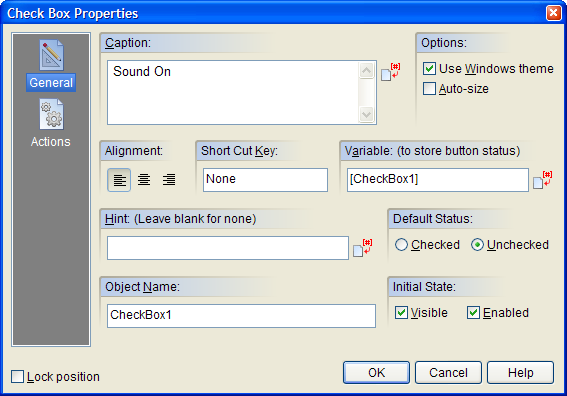
Enabling the Use Windows theme option will display the Check Box using Windows XP/Vista style. This feature only works when your publication is viewed under Windows XP and Vista. When viewed under older versions of Windows, the Check Box will be drawn using the normal method.
When the Auto-size option is enabled, the object will automatically adjust its dimensions to match the size of the caption text.
You may also set the alignment for the Check Box using one of the three Alignment buttons: Left Aligned, Centered or Right Aligned. The alignment affects how the Check Box is positioned relative to its caption. For example:

In order to keep track of the status of a Check Box while your publication is running, you will need to assign the object a unique variable name. VisualNEO Win will automatically assign a variable name that matches the Object Name, but you may change this by modifying the Variable (to store button status) field. At runtime, the variable will contain the word “Checked” when the Check Box is selected; otherwise, the variable will be undefined or empty. You can use some simple Action Commands to detect if the box is checked. For example:
If "[CheckBox1]" "=" "Checked"
do something...
Else
do something else...
EndIf
You can select or unselect a Check Box at runtime like this:
SetVar "[CheckBox1]" "Checked"
SetVar "[CheckBox1]" ""
For more information about variables and Actions, click here.
You may specify that the Check Box start out Checked or Unchecked by selecting the appropriate Default Status option. When your publication starts, the Check Box will be initialized in this state.
Actions
Check Boxes support the following Action Events: Click, Mouse Enter and Mouse Exit. Click the appropriate tab at the bottom of the Action Editor to create or edit Actions for the events you want to control. See Understanding Actions and Variables and Action Command Reference for a complete discussion of the Action Editor and Action Commands.